
Work / Geotagger: photos, map and 3D
Geotagger: photos, map and 3D
Every detection is checked in the geotagger before anything goes to the client. I wrote most of this QGIS tool, which puts the photos, tie points and elements together on the map and in 3D.
Re-creation. The terrain comes from a public LiDAR tile (ARSO, GKOT TM_426_66, CC BY 4.0), and the coordinates are that tile's, in D96/TM. The photos, dampers, detections, links and the map's styling are simulated or drawn, and none of my employer's code, data, imagery or screens is used.
What the real one does
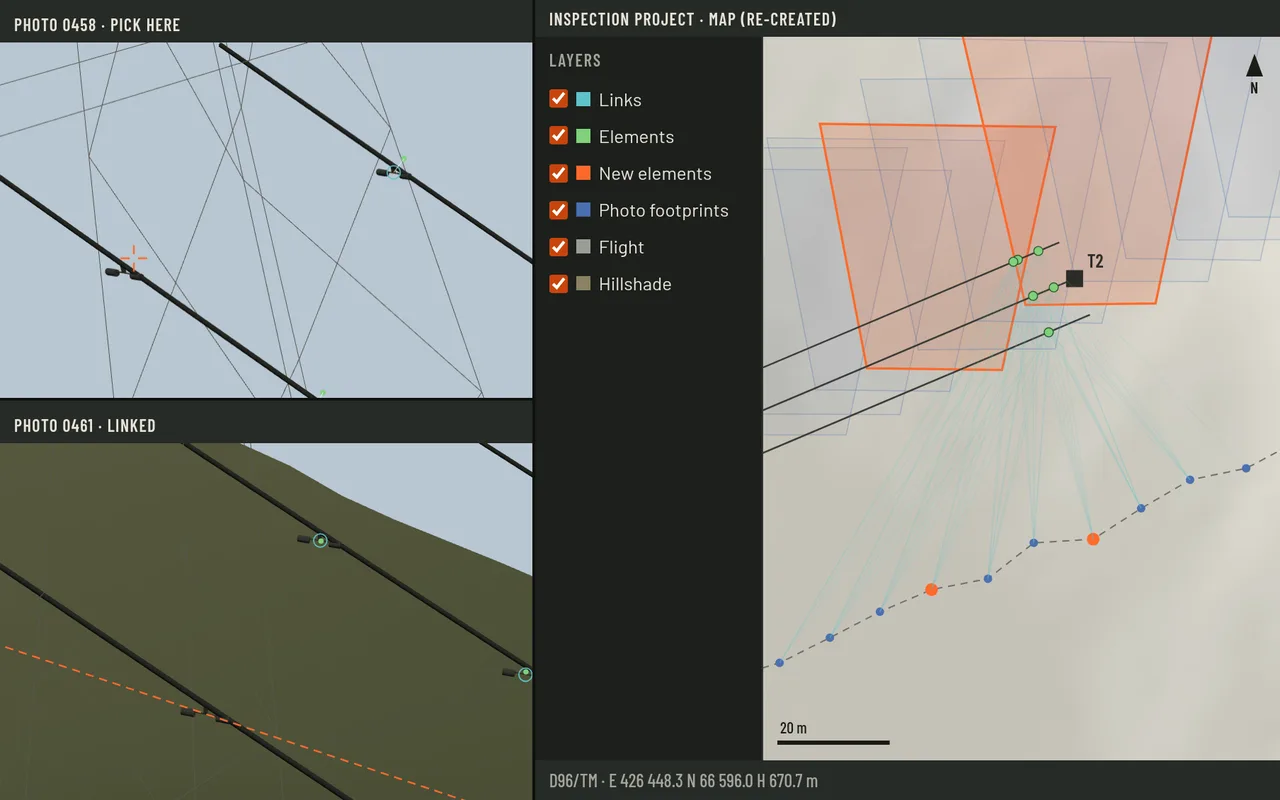
The geotagger is a QGIS tool where a human reviewer checks each detection, with its photos and tie points on the map and in 3D. A pick in one of its two linked photo windows draws the epipolar line in the other. It is part of the QGIS inspection suite, and I wrote its triangulation, its 3D view and its matching.
- Detection and matching produce thousands of elements, about 30,000 on one project, and each one needs a person's check before anything goes to the client.
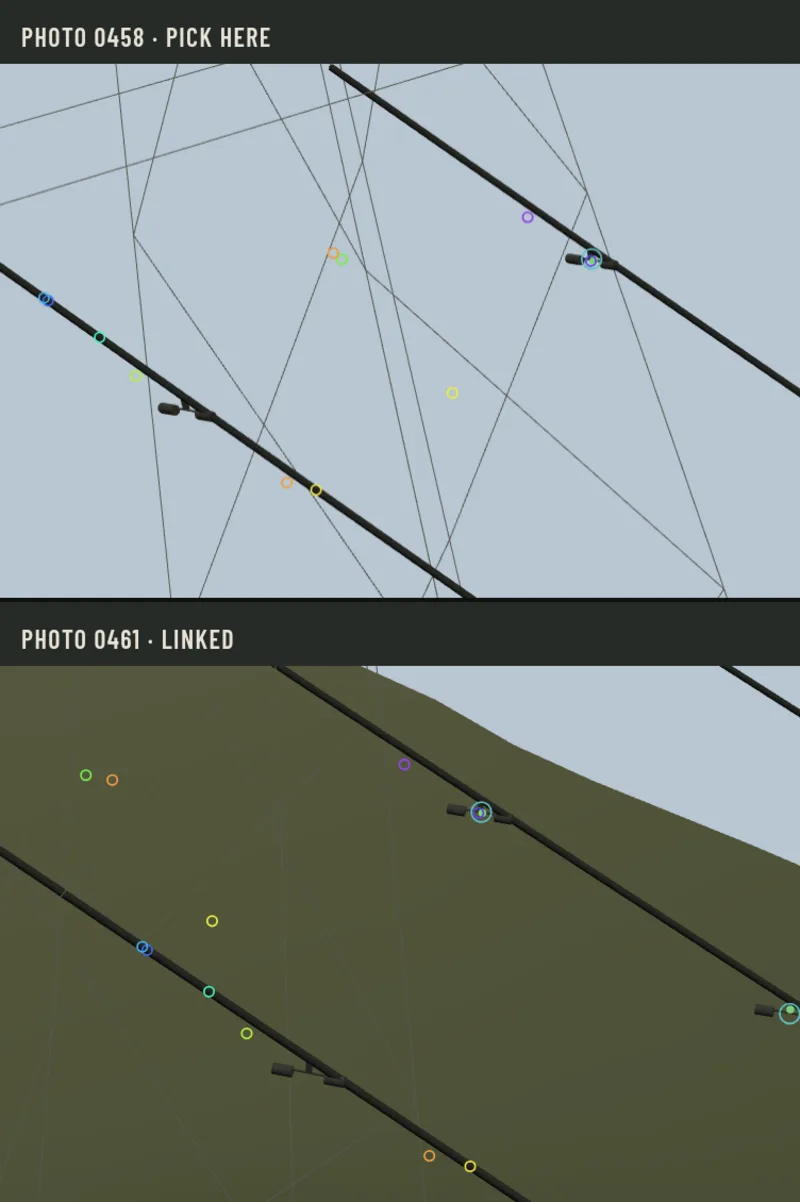
- Two photo windows sit beside the map. A pick in one shows the epipolar line in the other, where the same point must lie. Tie points are the YOLO detections, and links join each element to the photos that see it.
- New elements. Elements are made automatically or by hand. By hand, you pick the element in two photos, and the geotagger finds its other observations and builds the 3D element with all its links. A person can add tie points too.
- Bundle adjustment. Align views finds keypoints by itself in a photo and its neighbours, aligns the photo on them, and the photo's element matches improve. It runs at sub-pixel precision on the photos a person selects, because a whole project would take too much computing. It helps most when a photo starts from a bad pose. When the pose is already good, it often adds little.
- Re-matching. For the elements a photo sees, the geotagger can match the tie points again and realign the photos involved. A count from every photo decides how many elements each cluster gets. It shows the whole plan before anything is written, and logs the old poses so they can be put back.
- I wrote the triangulation, the 3D view and the matching, replaced much of the early code, and maintain it as part of the QGIS suite.
How the demo works
Open two photos of the span, follow an element between them and the map, and add a damper the detector missed. A short tour plays first, and a click anywhere in the demo hands it over to you.
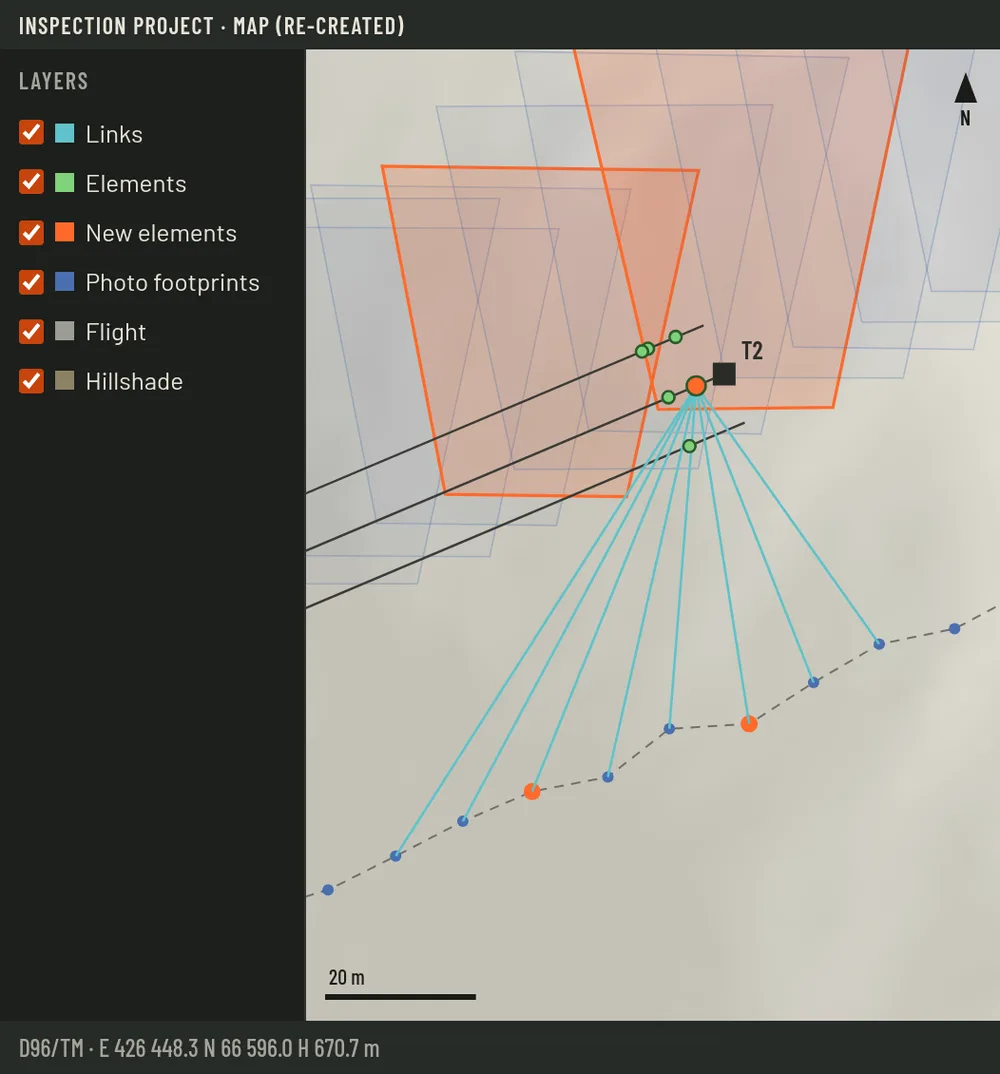
On the right is the span from above, styled like a QGIS map. It shows the flight, a footprint for each photo, the elements, and the links from each element to the photos that see it. Click a photo on the map to open it and a neighbour in the two windows. Hover an element on the map or in a photo, and it lights up in all three.
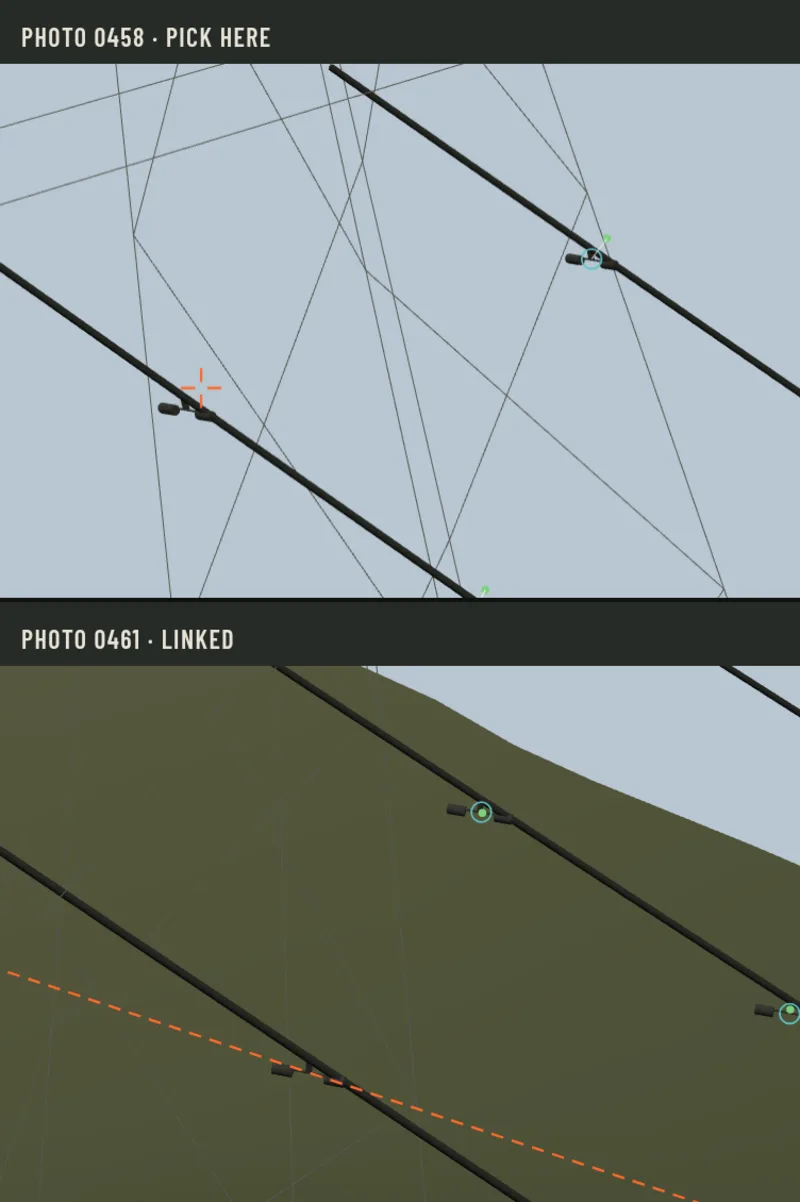
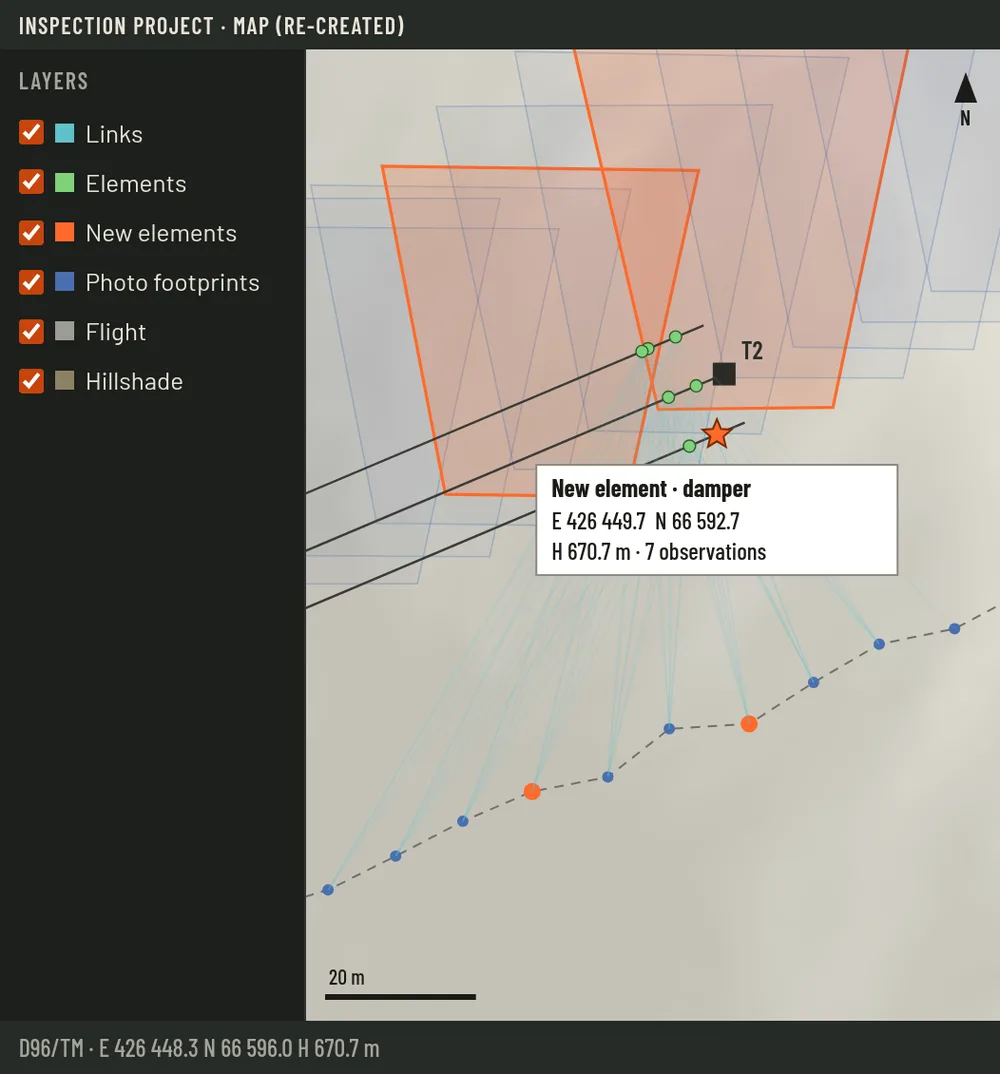
To add an element, click a damper in the upper photo. The lower photo draws the epipolar line, on which the same point must lie. Click the damper on that line, and the two rays give its position in 3D. The re-creation then looks for it in every other photo, links each observation and shows its coordinates.
Align views fits the upper photo to the lower one. Every other photo starts with an orientation a little off, so its elements miss their tie points by a few pixels. Aligning turns the photo until they meet, and the new pose is kept because it fits better. Matches marks feature points found in both photos.
The stills below show the same steps, for readers without JavaScript.
Bundle adjustment: aligning a photo on keypoints
One photo starts a little off its stored pose, and three others keep theirs. Align the photo and watch its rays find their points.
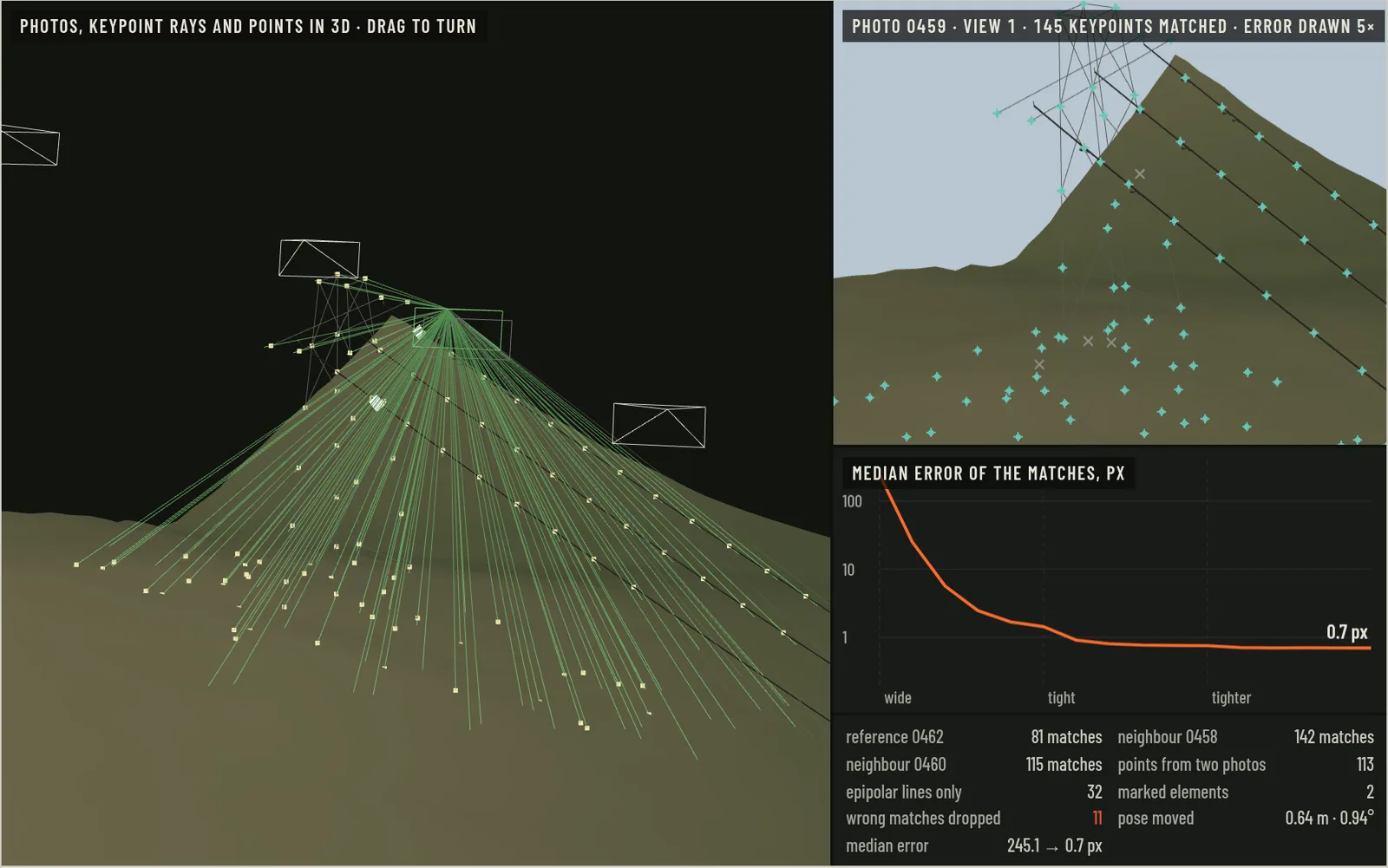
A keypoint is a corner or a speck of texture that a feature detector finds by itself. No element and no YOLO detection is involved. In the geotagger, SuperPoint finds the keypoints and LightGlue matches them, or ORB does both without a GPU. Each match is then refined to a fraction of a pixel.
The photo is matched with its reference and the two photos beside it, which keep their poses. A point that two of them see is placed in 3D from their rays, and a point only one of them sees gives an epipolar line. The fit then moves only the photo's pose, six numbers, until its keypoints land on those points and lines. Marked elements, where there are any, pull a little too. Once the photo is aligned, the matches of its elements improve.
The fit rests on hundreds of keypoints, so one bad match cannot spoil it. The first pass is wide and pulls in a pose that is far off, and the next is tighter. Matches still more than 3 px off are then dropped as wrong, and the rest is fitted once more.
It helps most when a photo starts from a bad pose, where it can turn an unusable photo into a usable one. When the pose is already good, it often adds nothing that matters. Even with sub-pixel matches it is sometimes not accurate enough, for example when keypoints move between photos.
The left view shows the four photos: the one being corrected in orange, its old pose in grey, the rays through its keypoints coloured by error, and the points. The upper right is the photo itself, zoomed on the tower, where crosses are keypoints and dots the matched points seen through its current pose. As in the geotagger, the new pose is kept only if it explains the matches better, and saving it is a separate, confirmed step. The solver was written for this page, and none of my employer's code is used.